Getting started with your aryve Trial Access
Welcome to aryve! Here you will find all the documentation resources you need to guide you through our ecosystem.
aryve is a solution for indoor navigation, that consists of aryve Vision, aryve Studio to manage your digital twins, as well as your navigation routes and augmented reality content, and aryve Guide, a mobile app (available natively and on the web, on different devices).
! Important note that the aryve Trial access only allows scans with our aryve Capture app and not uploading other type of scans.Before you start
In order to use aryve, you need:
- A 3D scan of your Location. A guide to creating one can be found at the link.
- Access to our aryve Guide apps. You can learn more about our apps and how to access them by following the FAQ sections for each of the apps at link.
- Access to aryve Studio with credentials to the system. Ensure you have access to aryve.io.
How to use
Step by step guide to using aryve:
- Scan your space using the aryve Capture app: follow the documentation.
For the aryve Trial access your Location can be of a maximum size of 200 snapshots (see increasing number on app while scanning), which is a space of approximately 250-300 sqm.
- Upload scan to aryve Studio using the aryve Capture app: follow the documentation
- Finalize Location setup: In the latest capture app version, the aryve Studio will fully update your Location with the scanning data uploaded from the aryve Capture app, as well as adding a default augmentation in the map. This process will take a few minutes, you can check when it is complete by looking at a green light on the Location in aryve Studio.
If you want to customize something further, follow the documentation.
At this step you can already test the localization in your physical space using the aryve Guide app. If you want to set up navigation as well to specific Points of Interest, continue with step 4.
- Set walkable areas
In order to set up waypoints that help any user navigate through the physical space, open your Location and go to the 'Waypoint View' page.
Once here, with just a right click on the map and select the 'Path' option from the dropdown.
Move the mouse around where you want your path to be on the map with left click where the path should go around corners, turns or other physical objects.
Ensure you do not add too many waypoints as the application will optimize the shortest paths.
Ensure generally that it feels like a natural way of walking for a person, a balance between too few and too many waypoints.
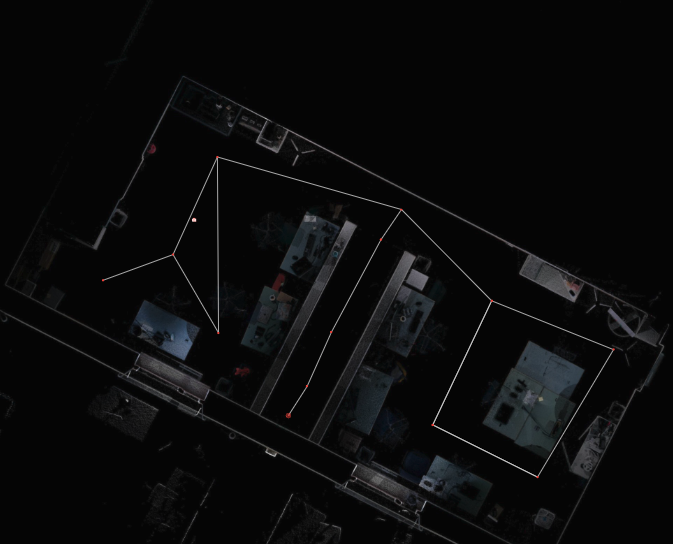
To connect multiple waypoints, you just select them and use the right side menu to finalize the process.
- To select all: select A and 'command' on your keyboard on MacOS and 'control' on Windows/Linux
- To select specific ones: keep pressed 'command' on your keyboard on MacOS and 'control' on Windows/Linux and select each of the points you want

For further setup detail, follow the documentation.
- Add POIs: follow the documentation
- Try setup with the aryve Guide app: follow the documentation
By default your Location is set as private. Therefore, either continue as such using the Location QR code or set the Location to public (but be aware that this way it will be visible to all users of the aryve Guide).