
The aryve capture app is an inhouse developed solution aimed at a quick scanning session for small spaces.
This solution is aimed at small spaces. For big Locations, use a terrestrial 3D Lidar scanner (see supported devices: link to be inserted)
Note: The application does not output an e57 file, but it creates the necessary data for aryve Vision and provides this to the aryve Studio to create a new indoor navigation Location.
Preparation
In order to use the aryve capture app, you have to have a Location ready to add a scan to in your aryve Studio account.
Initially, this will be set up for you by the aryve team.
App workflow
Step by step guide
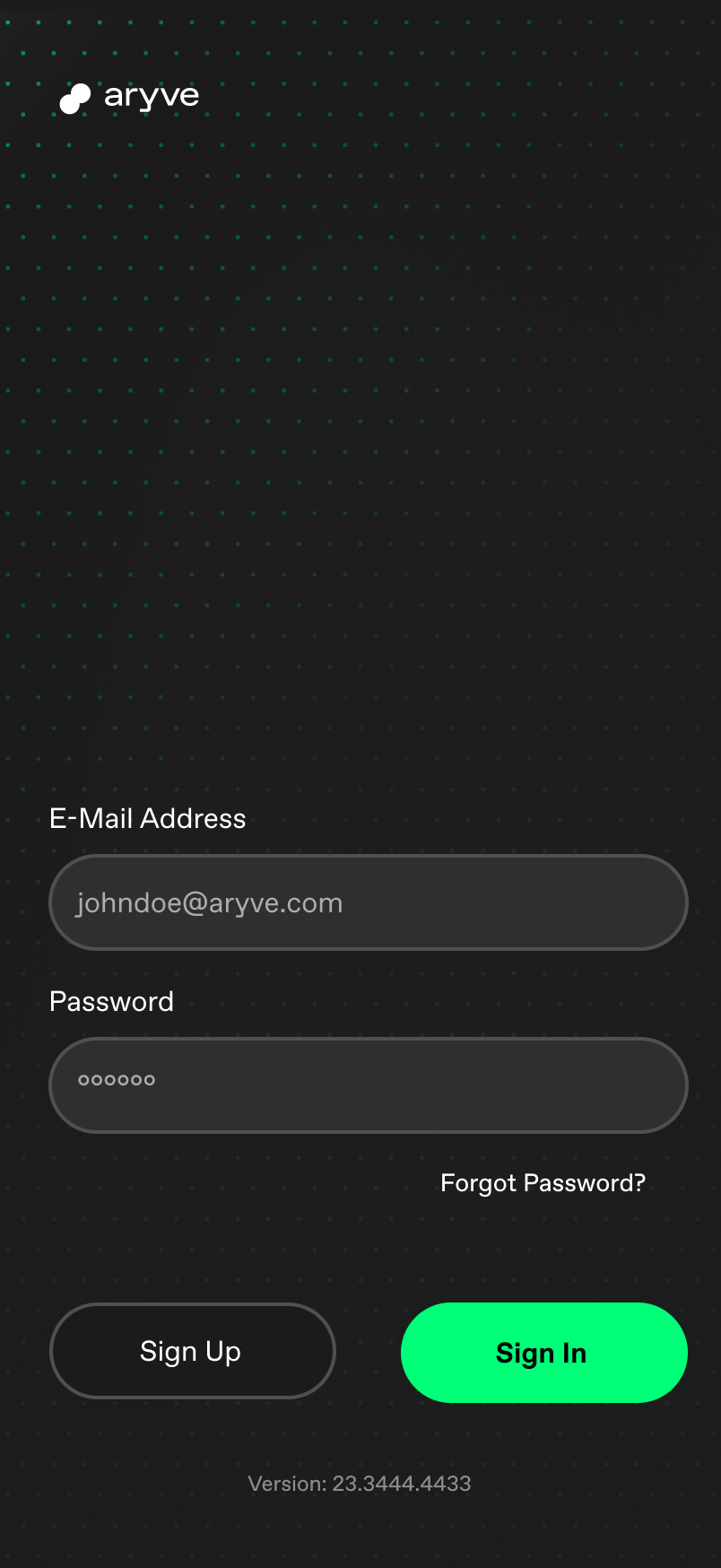
Log into the app
As a first step, log into the app with your aryve Studio credentials to be able to use your scan with the aryve indoor navigation solution.
If you do not have an account, you can sign up and request one. At this point an external link with a form to fill out will open.
If you have forgotten your password to the aryve Studio, this can be reset.
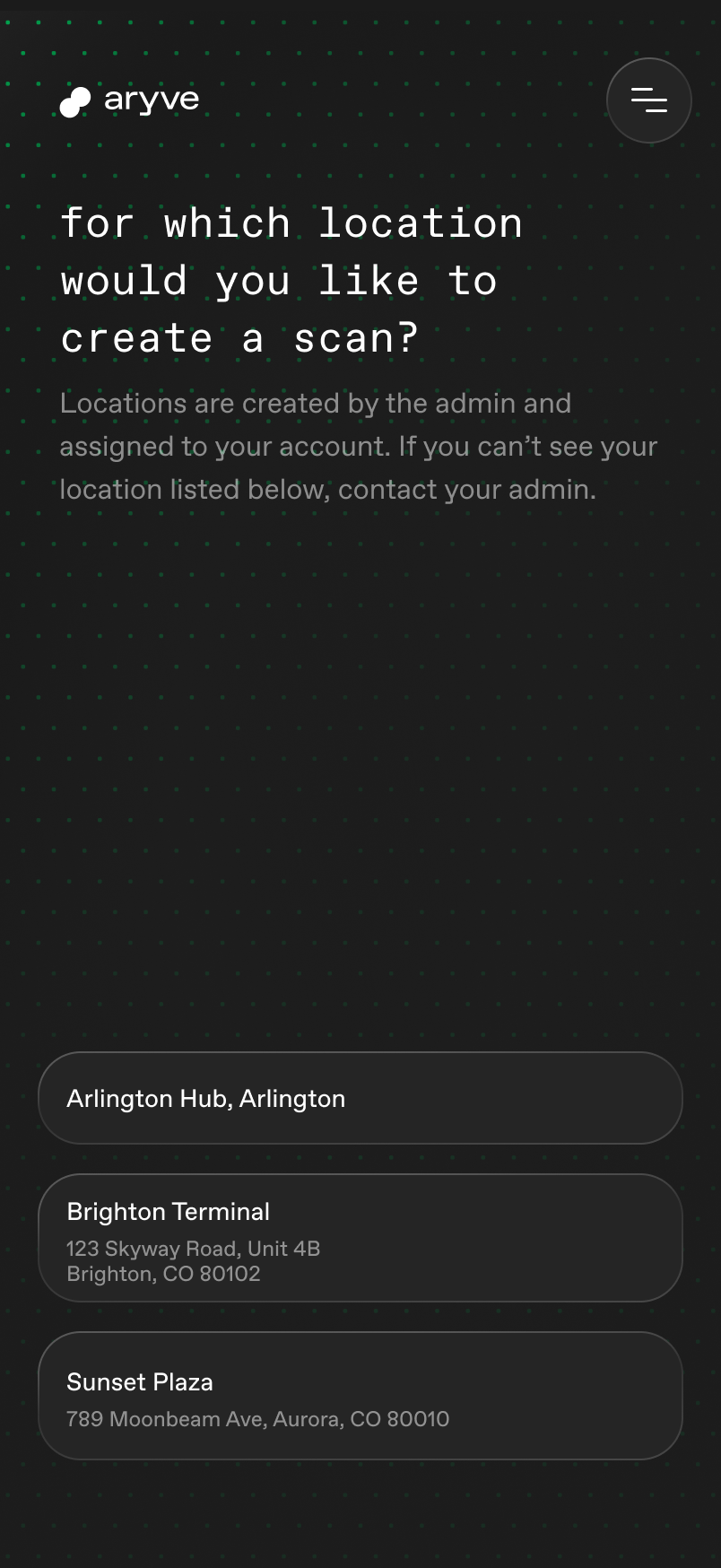
Select Location to upload scan to
A list of all the Locations the user has access to is displayed. Now select which Location you want to update with a new scan.
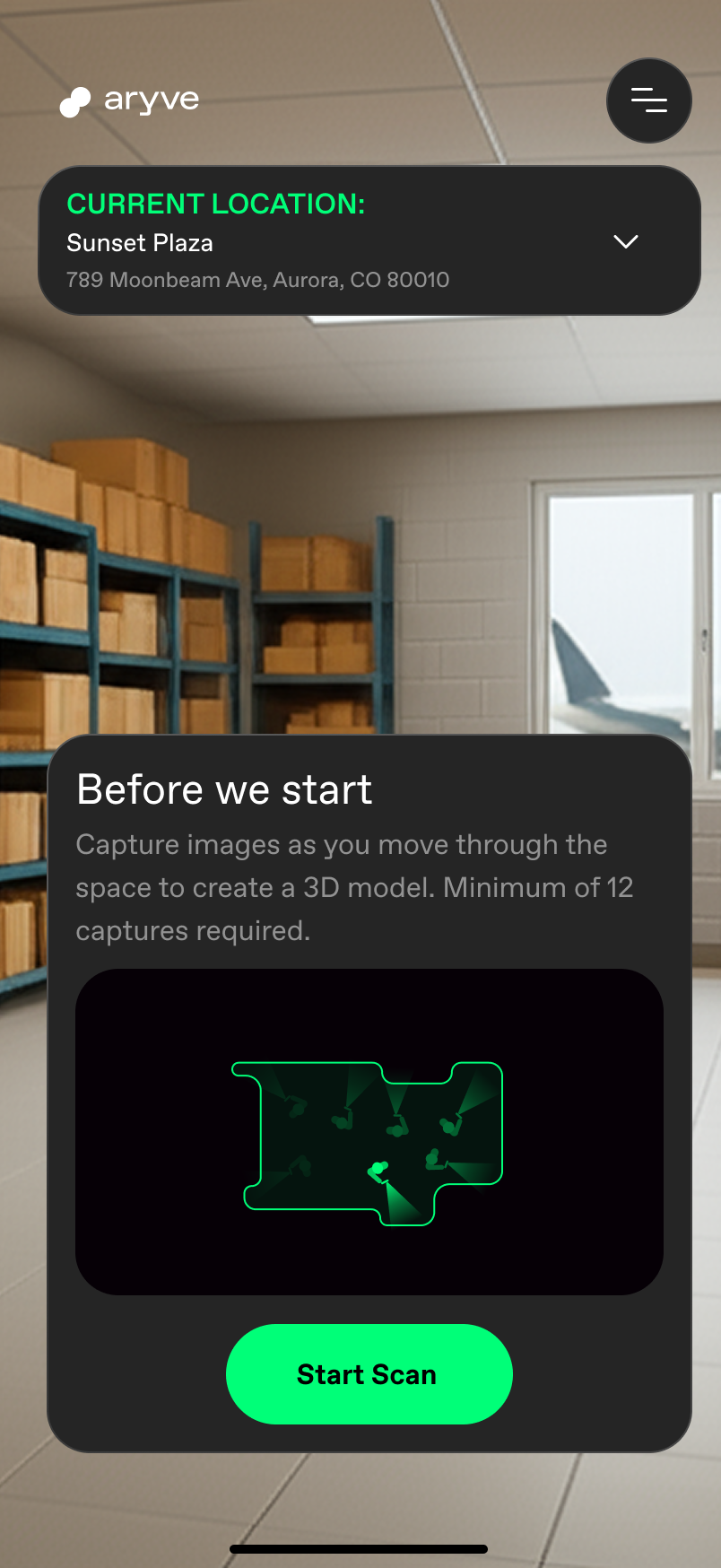
Scan your environment
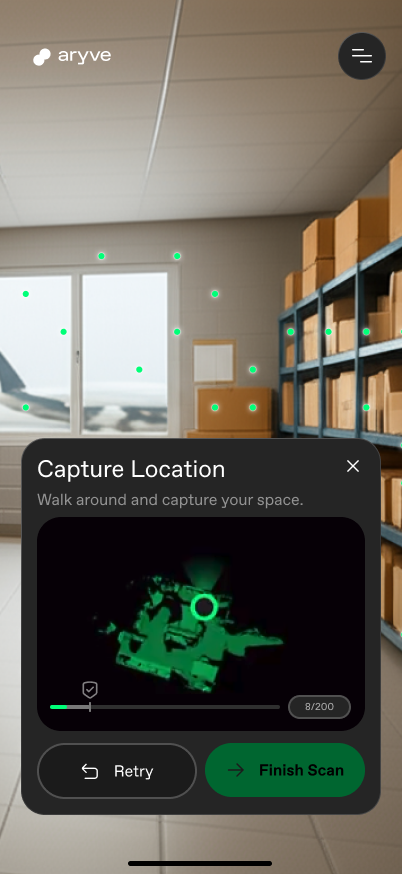
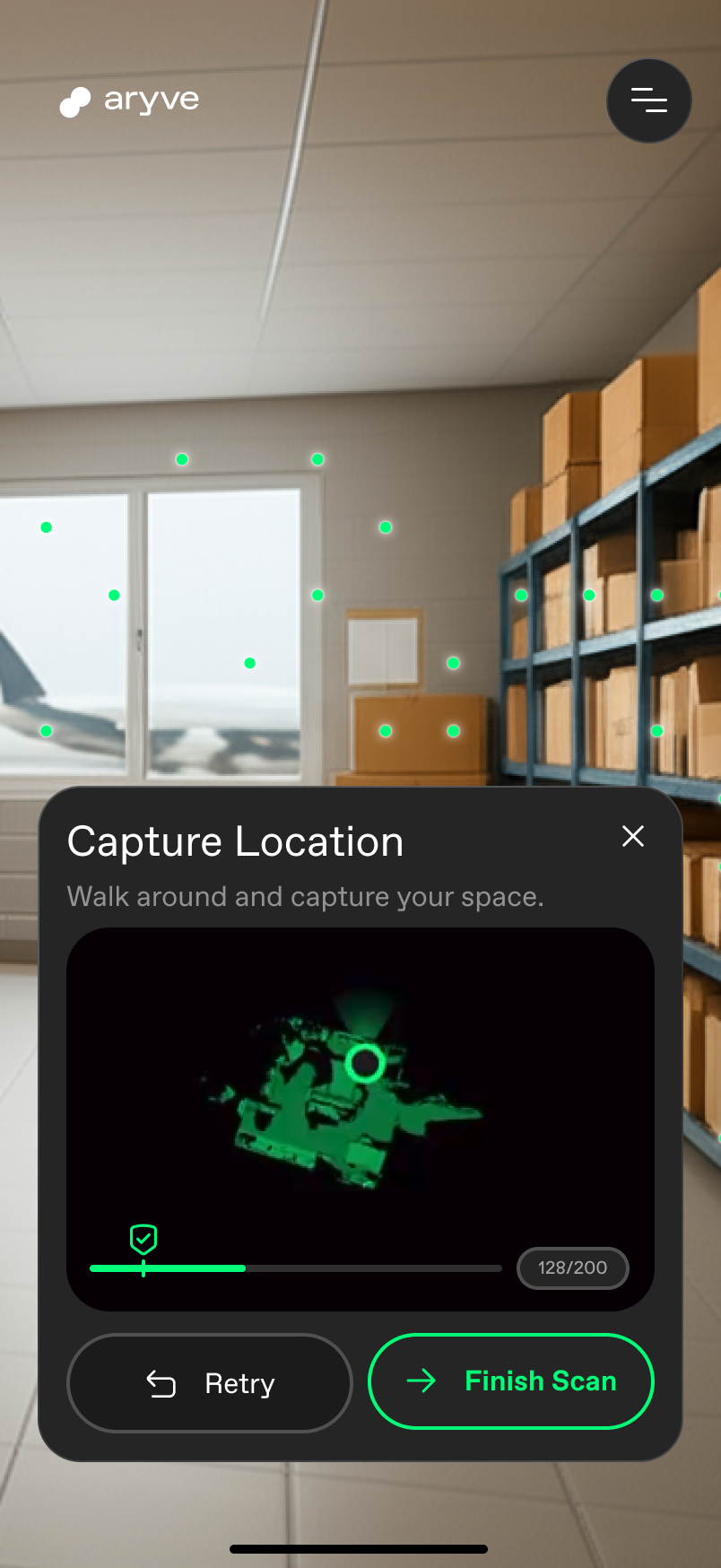
In order to scan your environment, click on the start button and move the phone around you as you walk so that we can record your whole environment.
 |  |  |  |
|---|
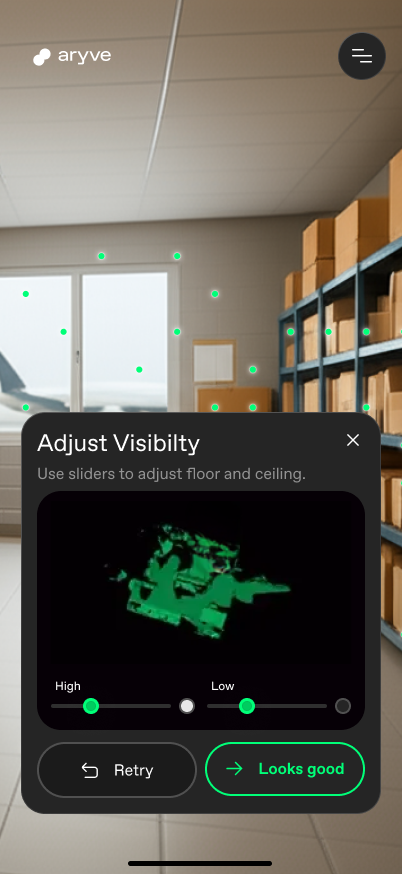
Once you are done scanning, press the stop button. Then choose if you want to redo your scan or continue with uploading it to the selected Location.
Upload your scan
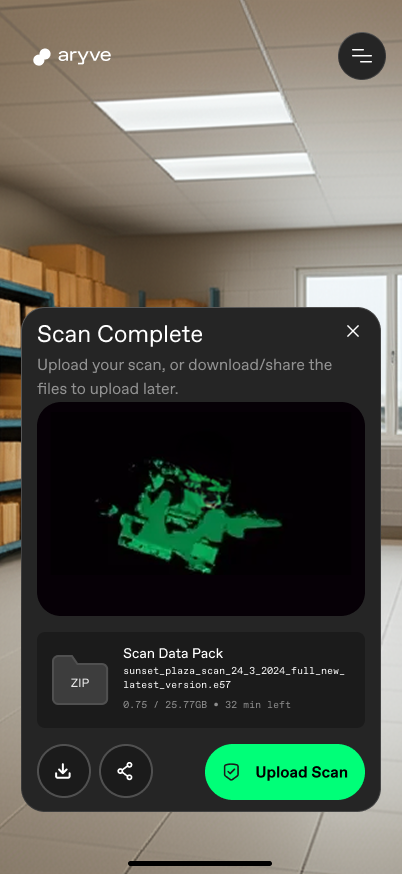
If you want to upload the scan to the chosen Location, select the Upload button, confirm you want to remove the current data at the Location with the new scan and wait for the upload to complete.
 | 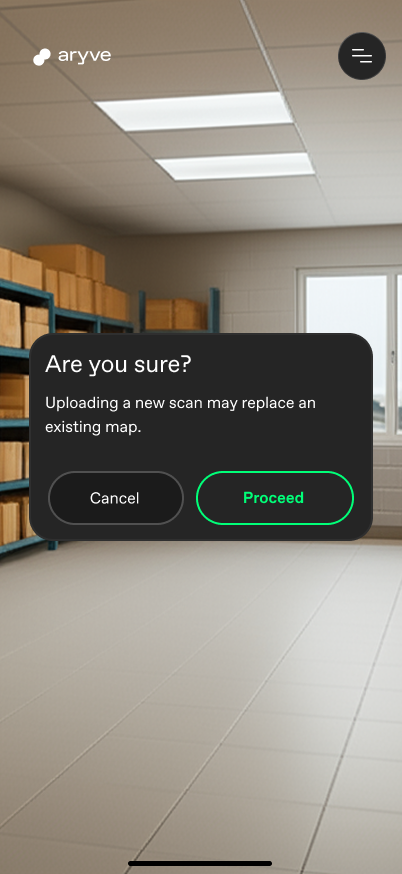 | 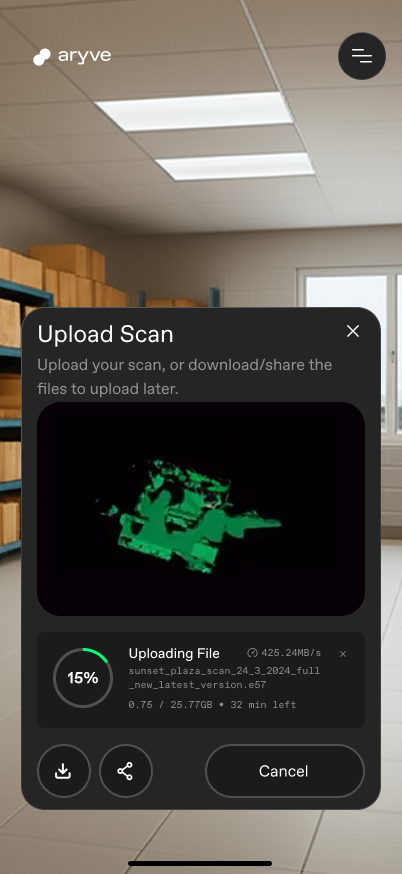 | 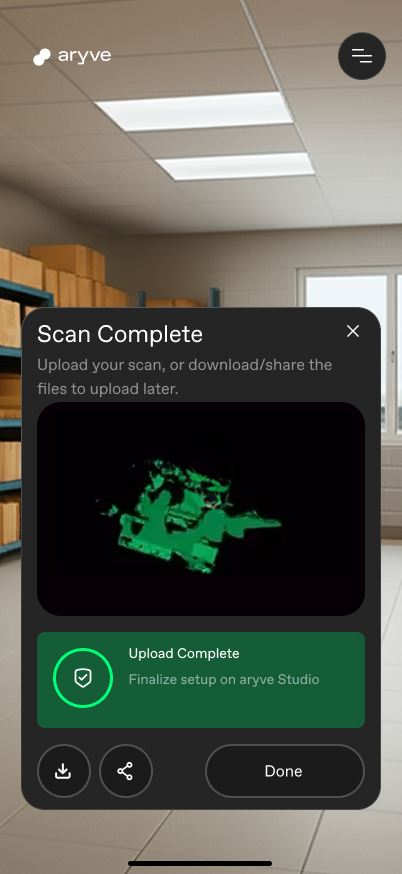 |
|---|
Upload failed
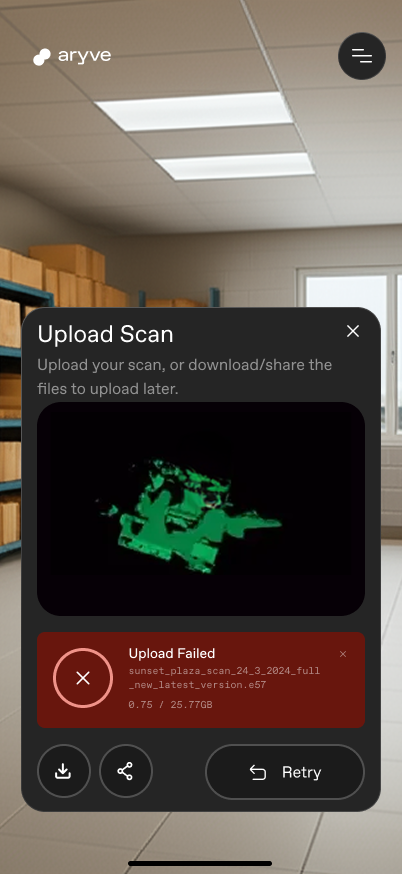
In case the upload has failed, retry the process. If this fails again, check your data on the aryve Studio or contact us.
Upload a previously created scan
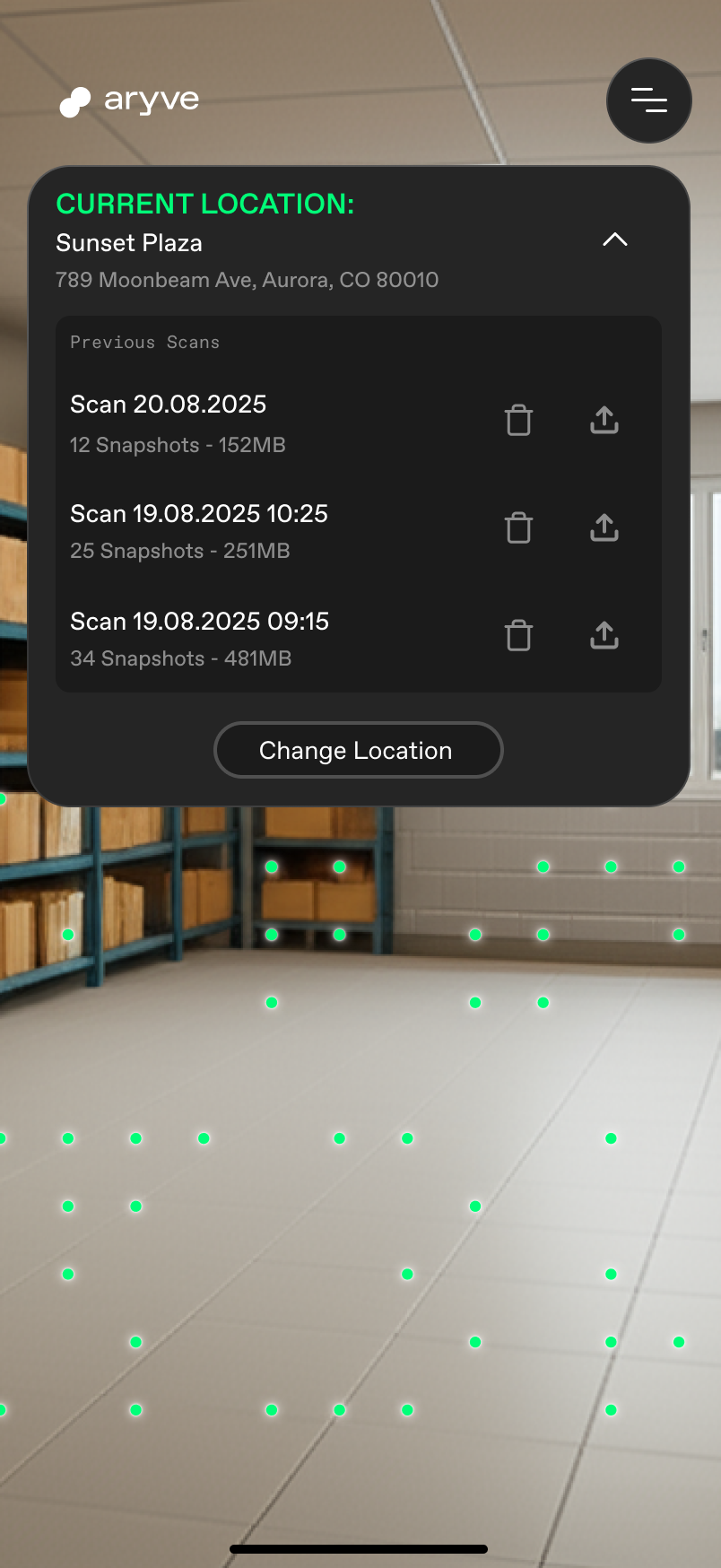
If you want to use a previously created scan and upload it to the Location, that can be found on a list at the top of the screen.
FAQ
How to install the app?
The aryve capture app can be installed from the Apple App Store at https://apps.apple.com/en/app/aryve-capture/id6752774440
What devices is the app available on?
The application runs on iOS Lidar devices.
What is the minimum or maximum space size I can scan with the app?
The app needs at least 12 snapshots (camera images) to create a scan. For now we limit the app at 1000 sqms.
What do I need to do after the scan has been uploaded?
After your scan has been succesfully uploaded, you can continue finalizing your Location setup on aryve Studio. Helpful links:
What do I need to do if I want to replace the scan of my Location?
In order to replace the scan you can either:
-
Reset the Location in the aryve Studio (CMS) by using the reset button from the Location menu, then continue at the start of the page.
-
Create a new scan and upload it to the aryve Studio (CMS). Then go to the Location menu and select the option Edit floors. From there go through all steps, start at step 1 and select the 'generated file' option. Then continue through all steps and save your changes.